Uploading Documents
Uploading documents to Content Partner is a simple and efficient process designed to save time and effort. Whether you're diving into regulations, chatting with Freya, or uploading directly from your device, you have multiple options at your fingertips. These flexible upload methods ensure quick access to your document.
2.1 Quick Upload via Regulations Module
If you’re exploring a regulation and want to dive deeper, simply click the bubble
icon next to it. This will instantly open Content Partner and automatically upload
the selected document - saving you time and effort.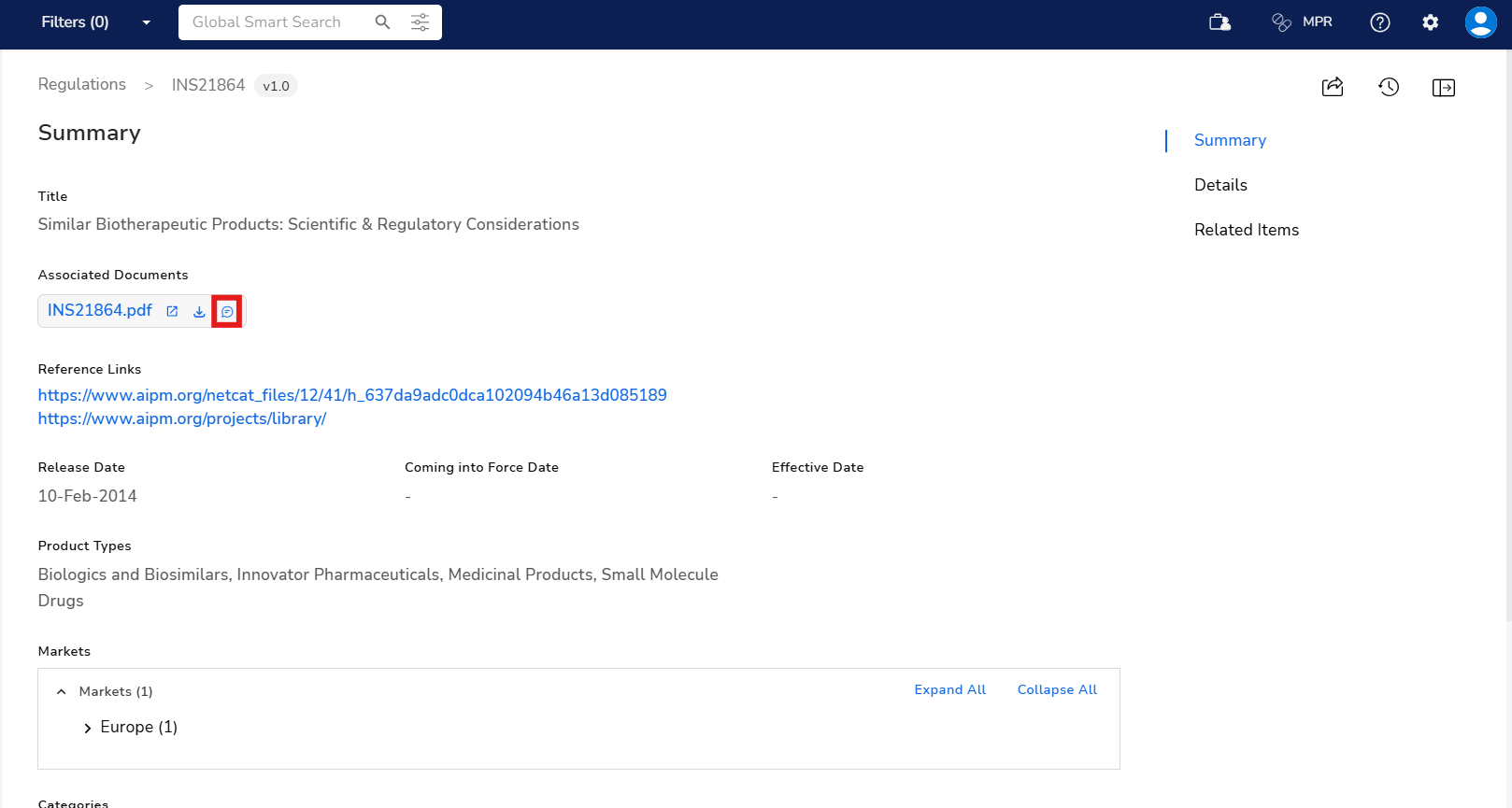
2.2 Quick Upload via Freya Chatbot
Once Freya provides you with a response and the relevant regulations, just click the
bubble icon next to the regulation you’re interested in. This instantly opens
Content Partner and automatically uploads the regulation for you—no extra steps
needed.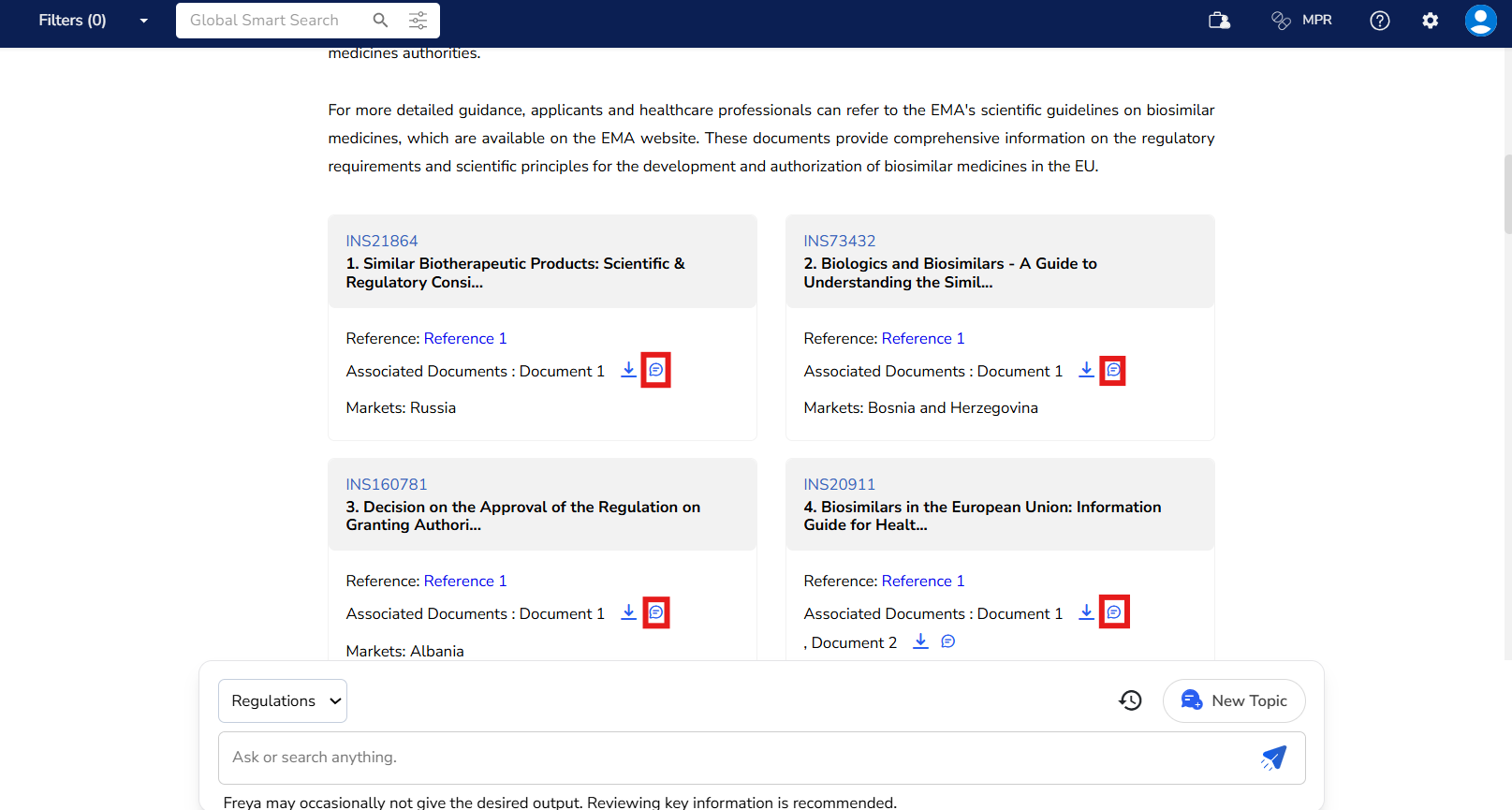
2.3 Upload from Your Device
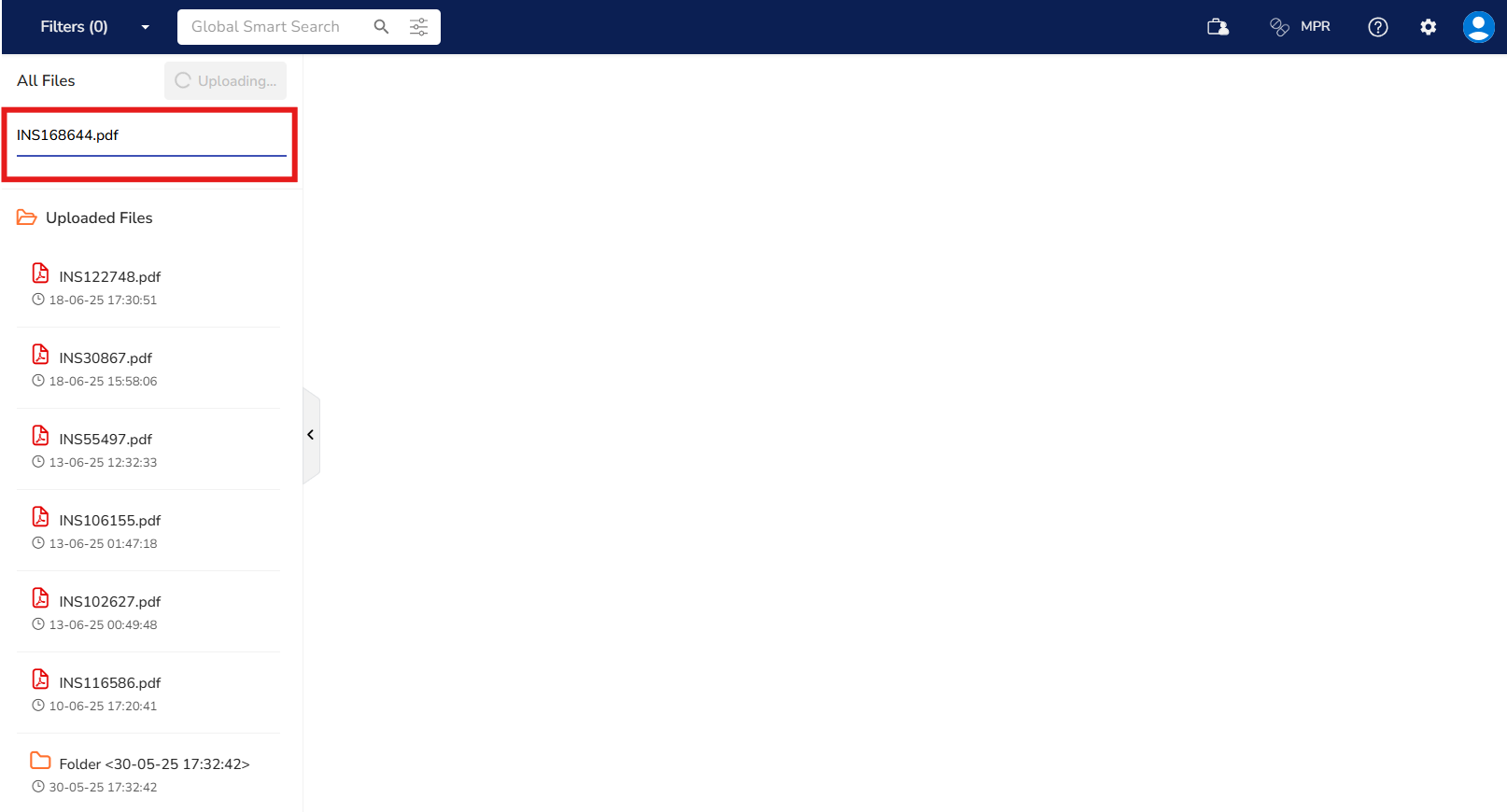
You can also upload documents directly from your device. Just click the Upload
button, select one or multiple files, and they’ll be uploaded into a single folder
within Content Partner for easy access and organization.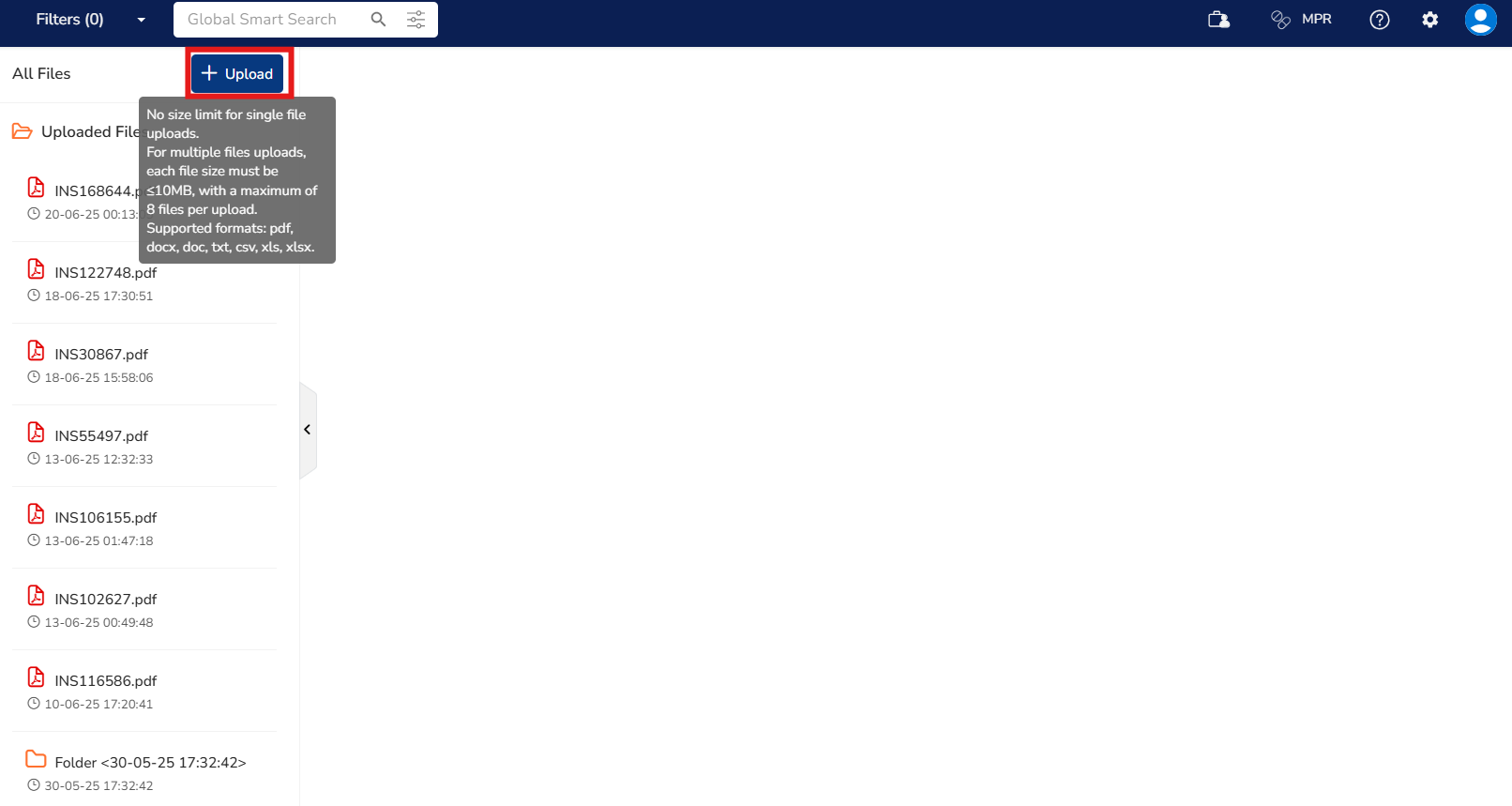
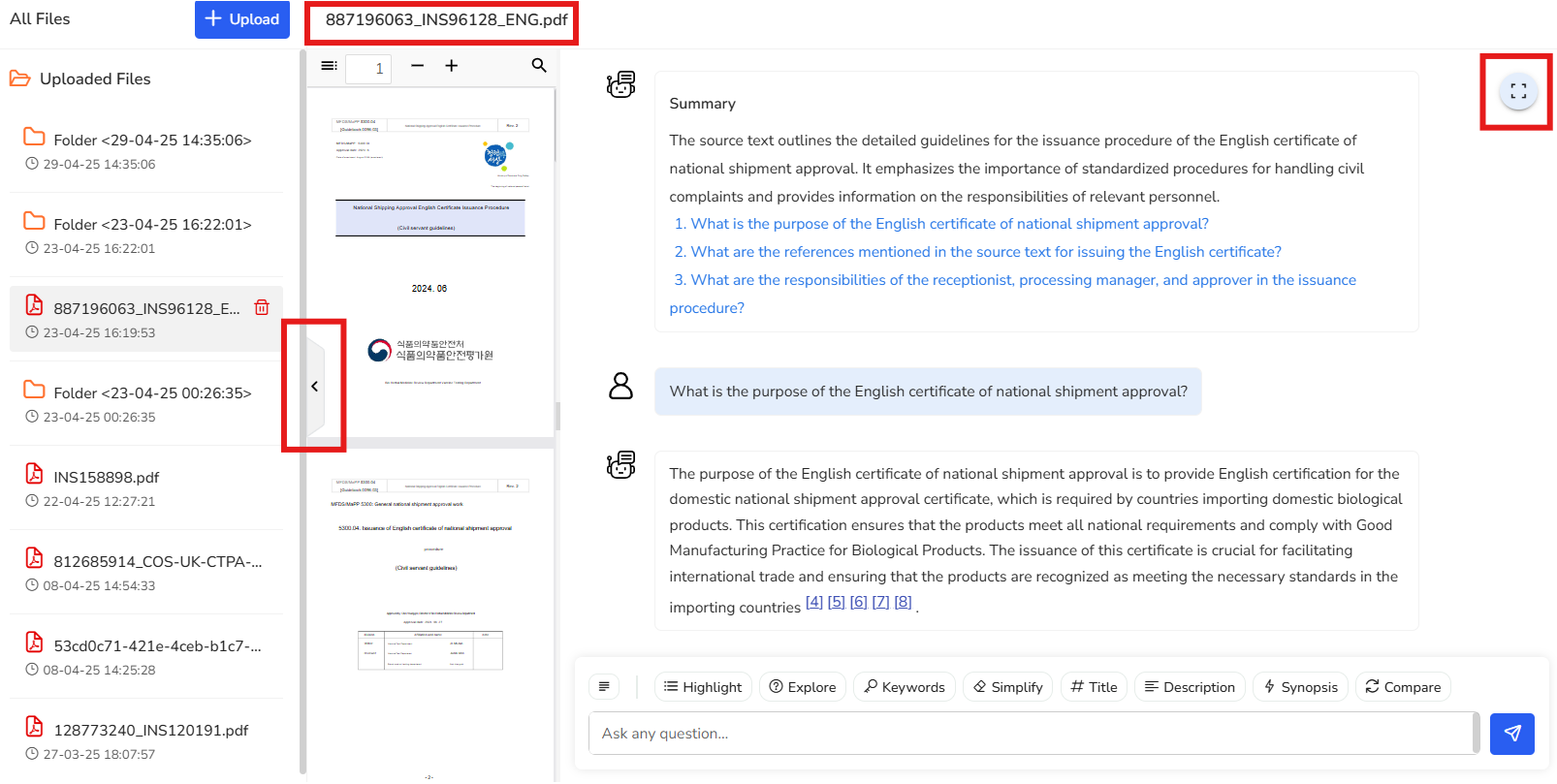
- Once uploaded, all your documents will appear on the left side of your chat screen, where you can easily switch between them. You’ll also see a preview of the selected regulation next to your uploaded documents—helping you stay focused and organized while you work.
- To reduce distractions and keep your workspace clear, you can collapse both the uploaded documents panel and the PDF preview by clicking the corner brackets icon. This lets you concentrate fully on the chat and insights.
- If you only want to hide the list of uploaded files while still viewing the
document preview, simply click the left-facing arrow between the two
sections. It gives you more screen space to focus on what matters
most.